API Keys
How to create API keys for Binance spot and futures wallet
Note: Please, note that the following strategies may be connected only to margin wallet:
ETH/BTC ALPHA
ETH/BTC ALPHA Leverage 4
ETH/BTC BETA Leverage 4
You can find more information in our section “How to create API keys for Margin Wallet”
Log in to your Binance account.
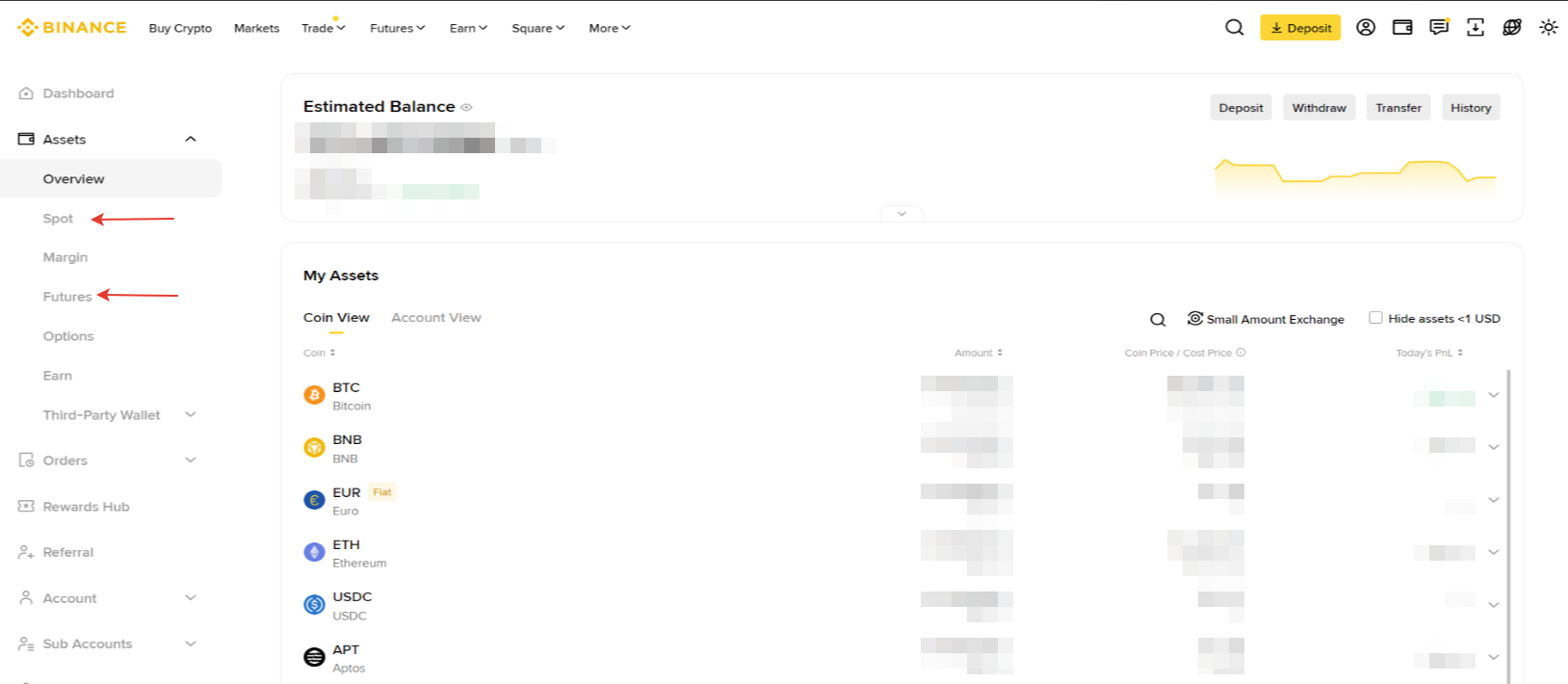
Choose a wallet: Spot – for BETA strategies, Futures – for ALPHA and Leverage strategies. Add the minimum required amount to the corresponding wallet.
1
Log in to your Binance account.
Choose a wallet: Spot – for BETA strategies, Futures – for ALPHA and Leverage strategies. Add the minimum required amount to the corresponding wallet.
2
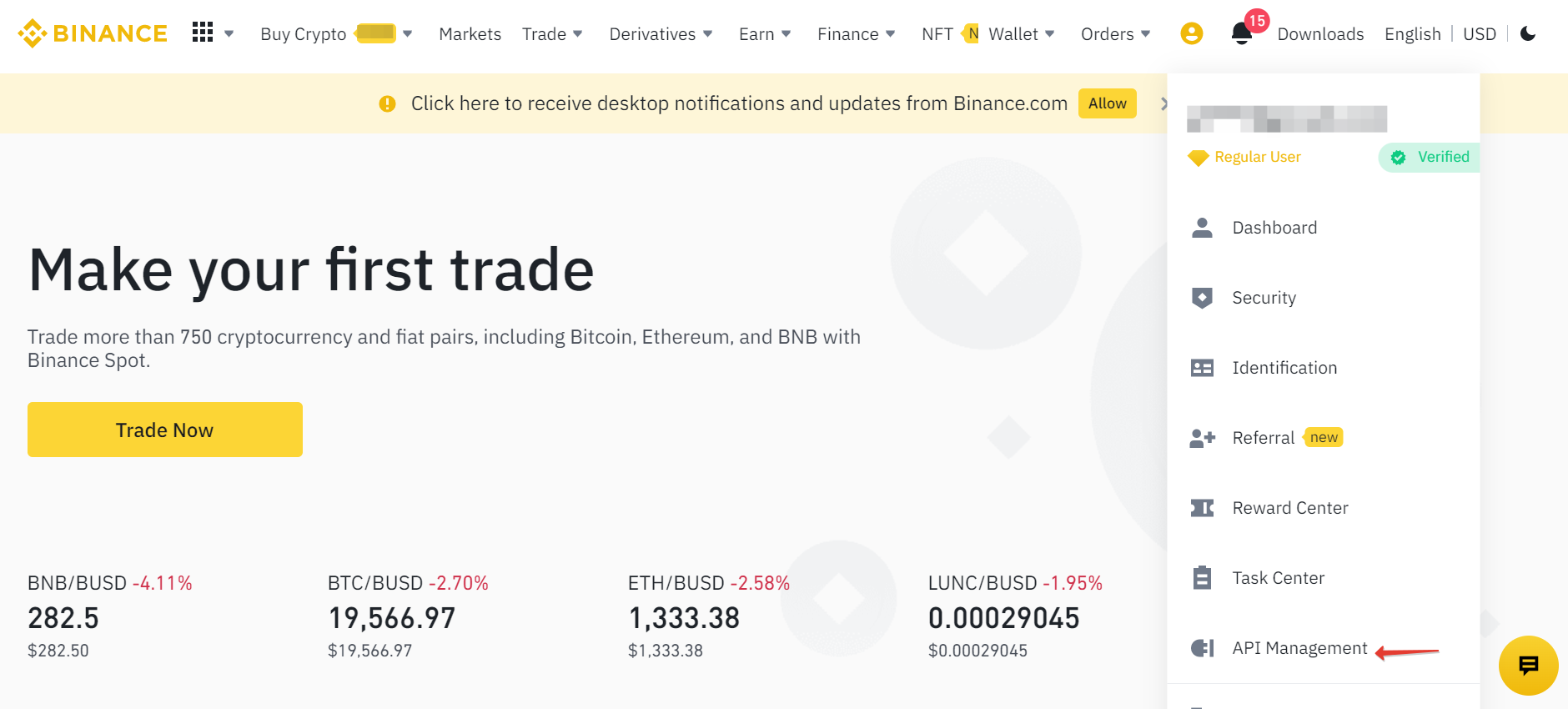
Once API keys are created, copy your API and Secret key and store them in a safe place. Then click “Edit restrictions”
4
Set the correct restrictions
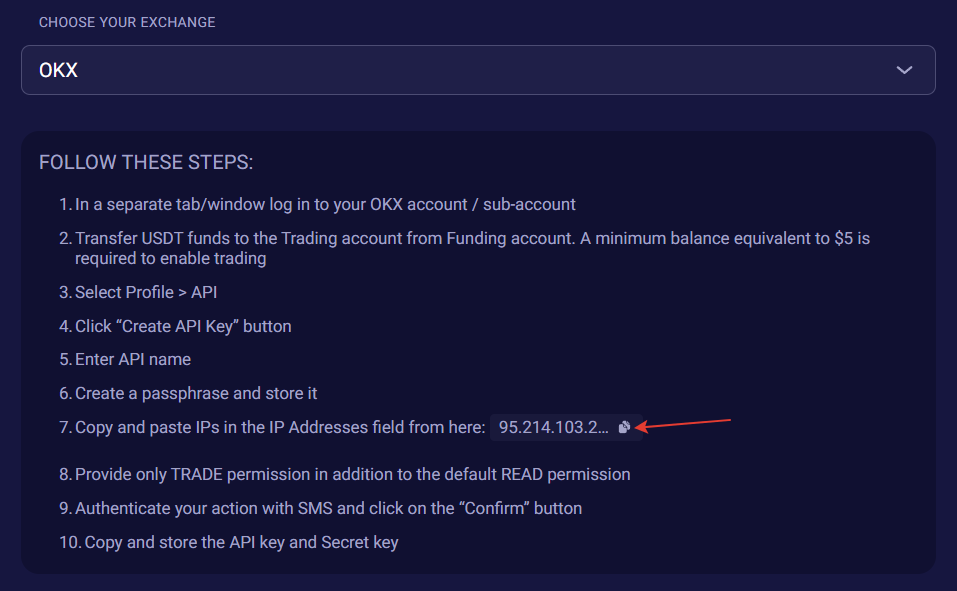
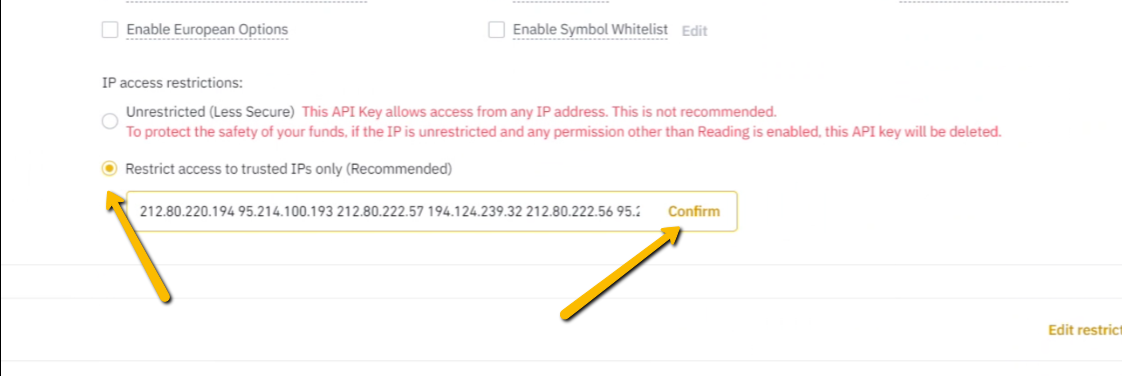
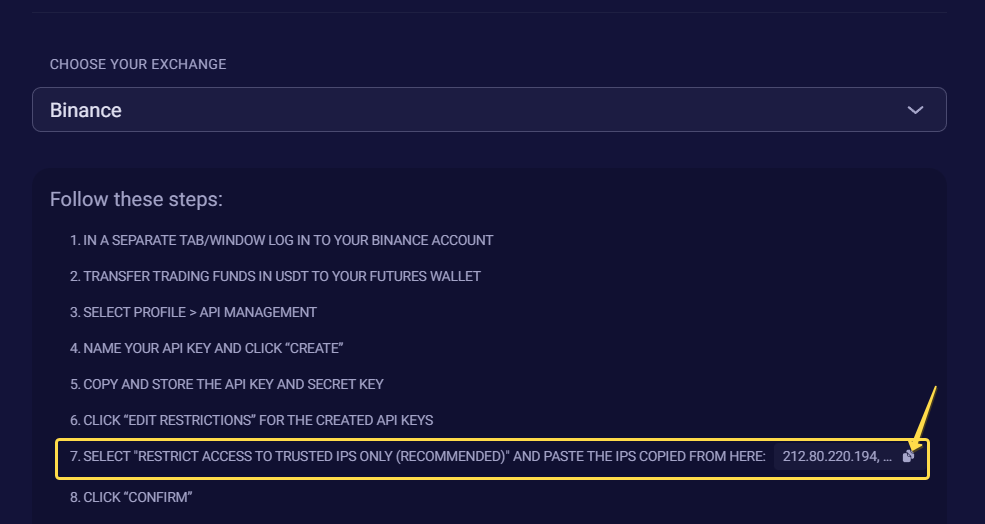
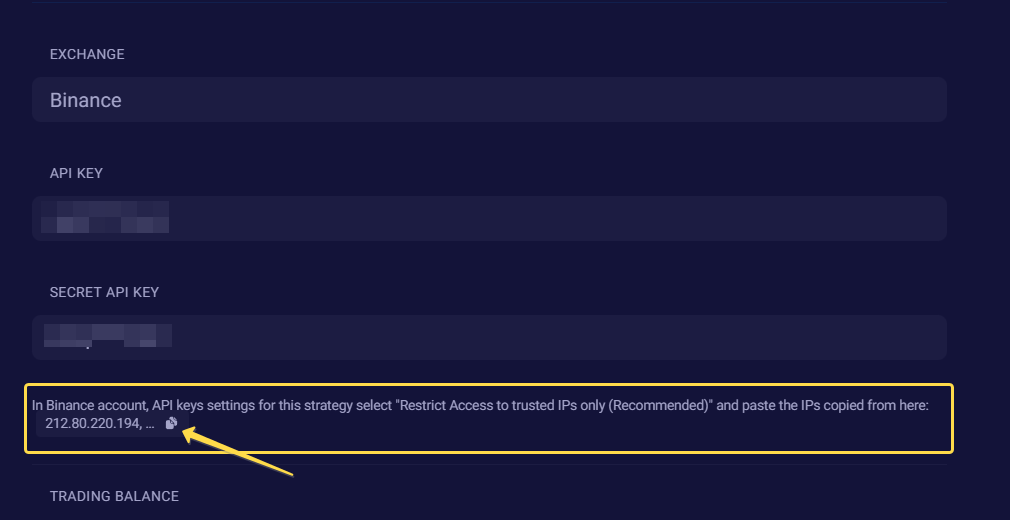
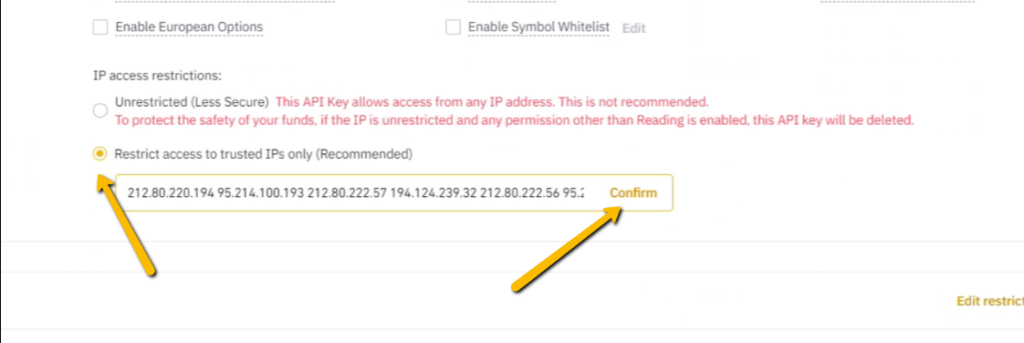
Select “Restrict Access to trusted IPs only (Recommended)” and paste the list of our IPs. Once IP list is placed in the corresponding field, click “Confirm”.
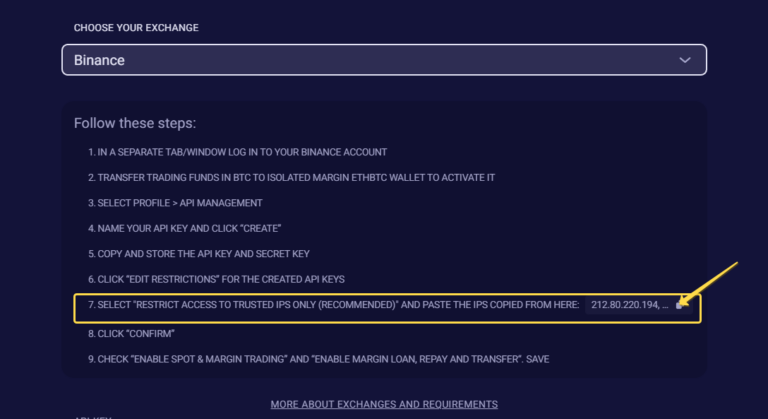
You can copy the full IP list in the paragraph 7 of our API keys instructions.
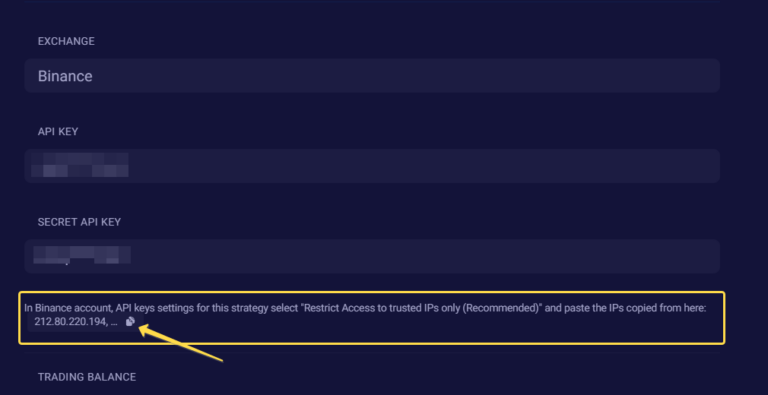
You will always be able to find the full IP list later. Just log in to your EndoTech account, go to the Dashboard, choose any of your connected strategies, click “Settings”. Below the Secret API Key field you will find the link to copy the IP list.
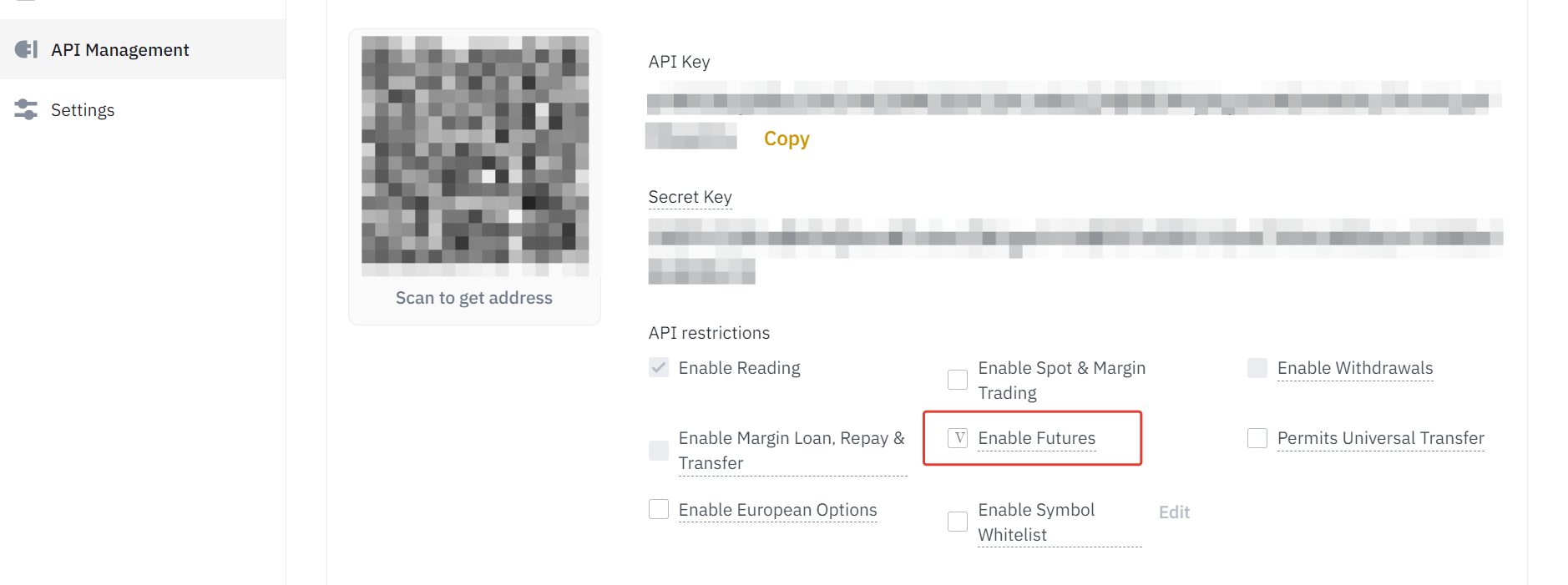
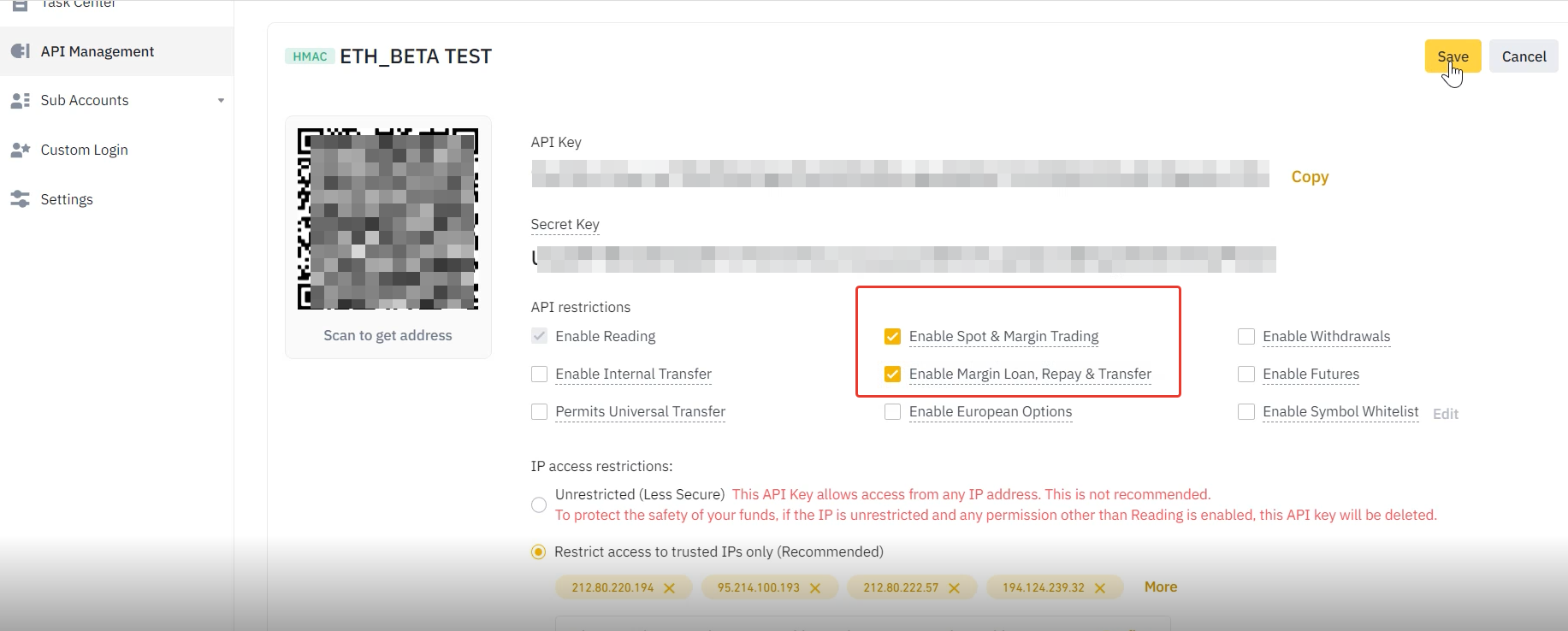
Set the permissions corresponding to your strategy:
- For BETA strategies check Enable Spot & Margin Trading. Save settings.
Video Tutorial “Creating API keys for Binance”
Video Tutorial “Connecting Strategies on Binance”
API keys for Margin Wallet
You will need margin wallet in order to connect the following strategies:
- ETH/BTC ALPHA
- ETH/BTC ALPHA Leverage 4
- ETH/BTC BETA Leverage 4
1
2
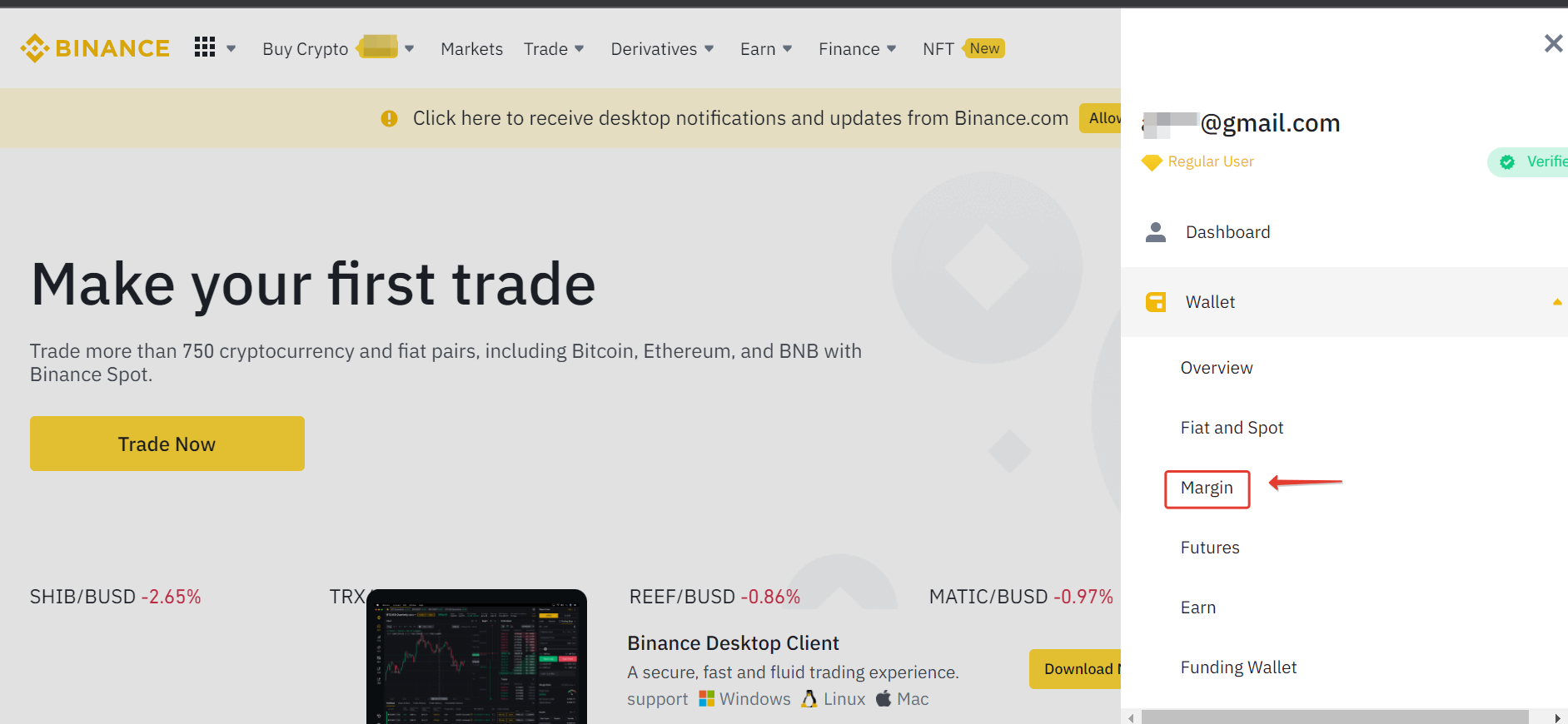
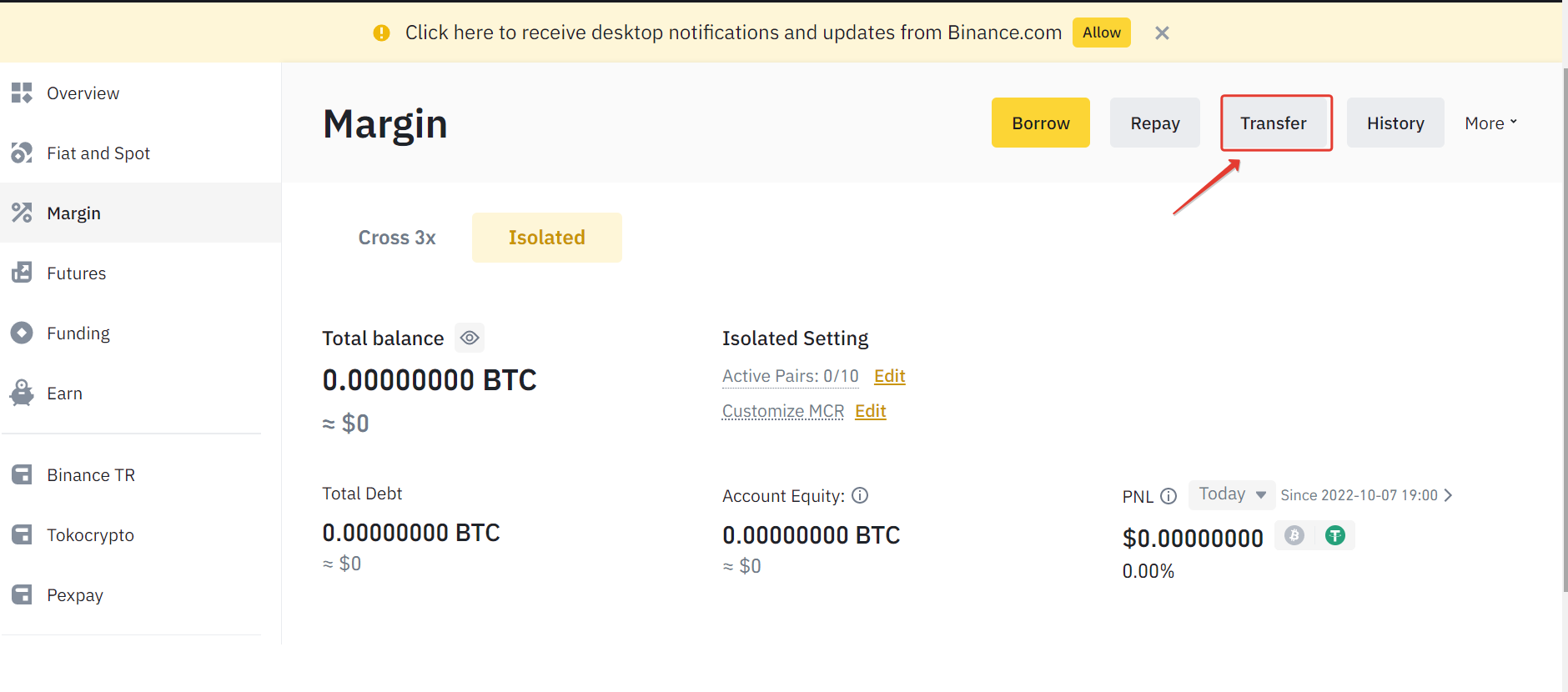
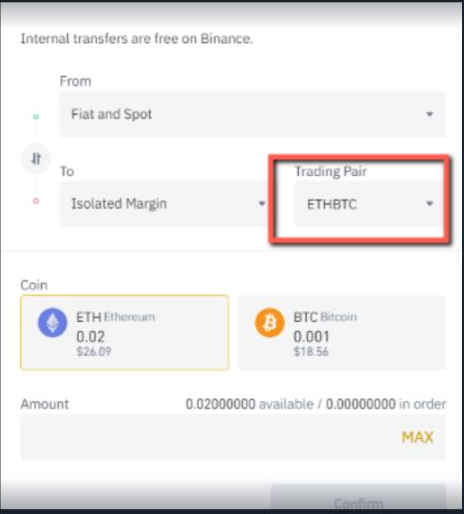
Transfer funds (BTC) from Fiat and Spot wallet to the Isolated Margin ETH/BTC wallet (you should have the minimum required amount in BTC)
3
4
5
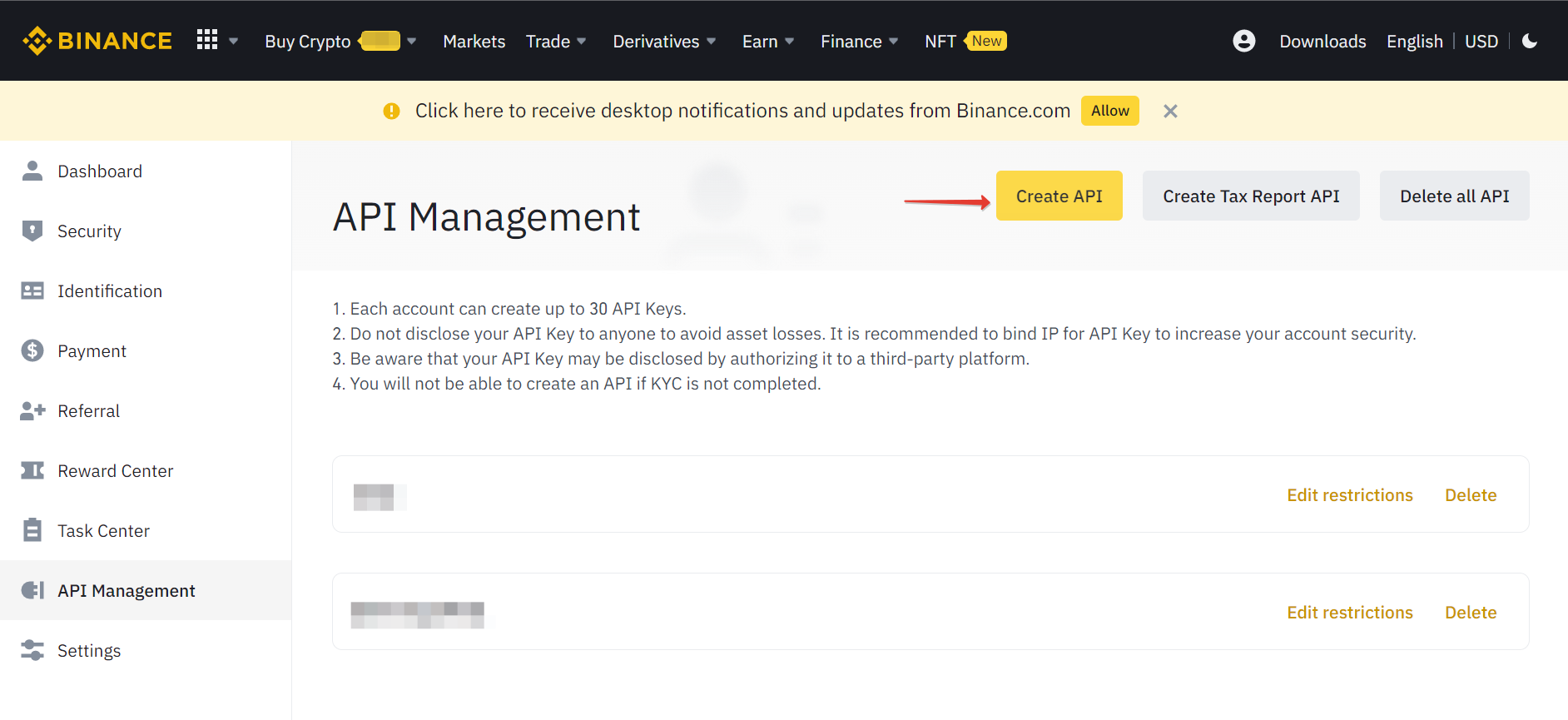
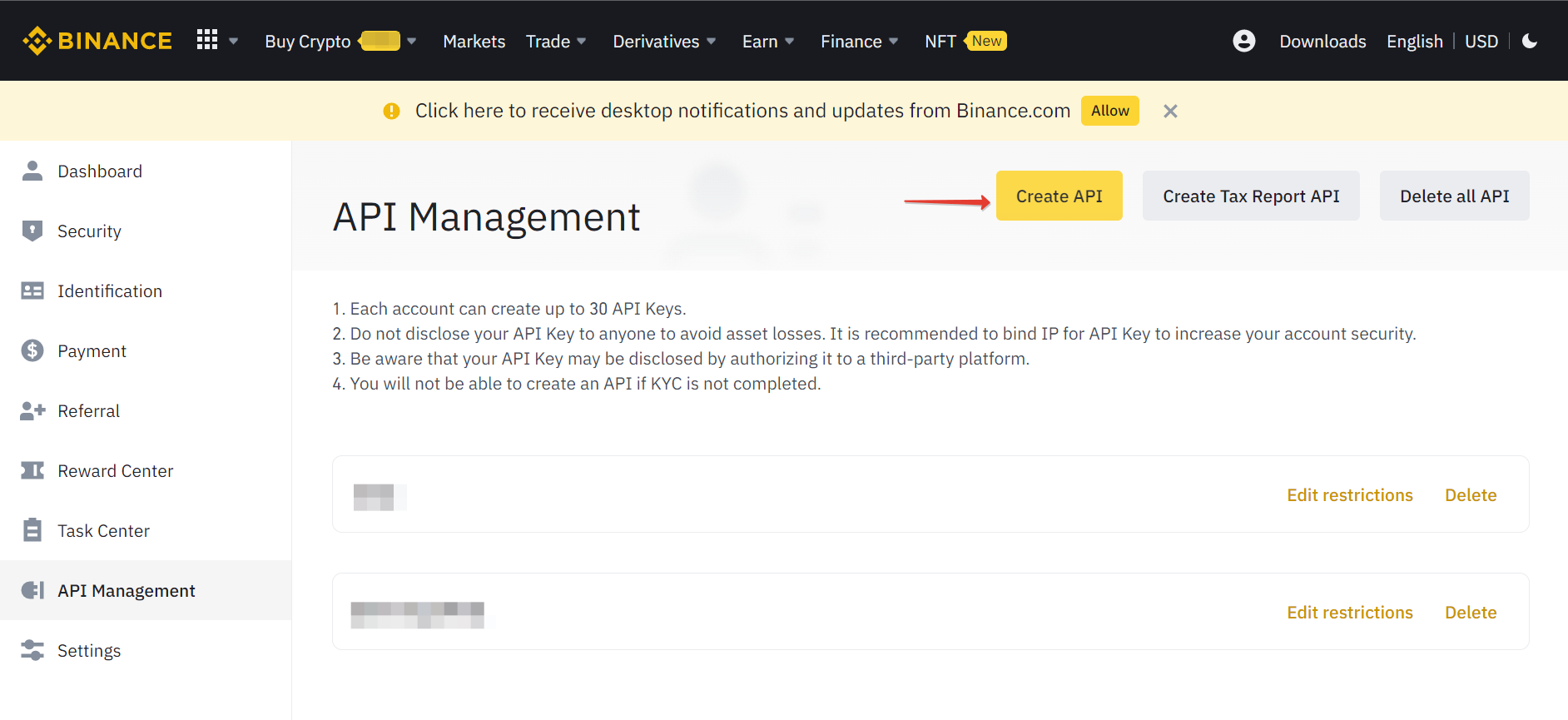
Name new API keys and click on “Create API
6
7
Once API keys are created, copy your API and Secret key and store them in a safe place. Then click “Edit restrictions”
8
Select “Restrict Access to trusted IPs only (Recommended)” and paste the list of our IPs. Once IPs list is placed in the corresponding field, click “Confirm”. Save settings.
You can copy the full IP list in the paragraph 7 of our API keys instructions.
9
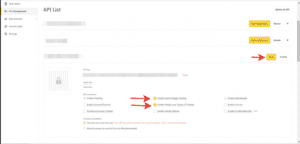
Check “Enable Spot & Margin Trading” and “Enable Margin Loan, Repay and Transfer“. Save.
API keys for Margin Wallet
You will need margin wallet in order to connect the following strategies:
- ETH/BTC ALPHA
- ETH/BTC ALPHA Leverage 4
- ETH/BTC BETA Leverage 4
3. Add funds (BTC) to the Isolated Margin ETH/BTC wallet (you should have at least the equivalent of $1000 in BTC)
2. Click ‘Isolated Tab’
3. Add funds (BTC) to the Isolated Margin ETH/BTC wallet (you should have at least the equivalent of $1000 in BTC)
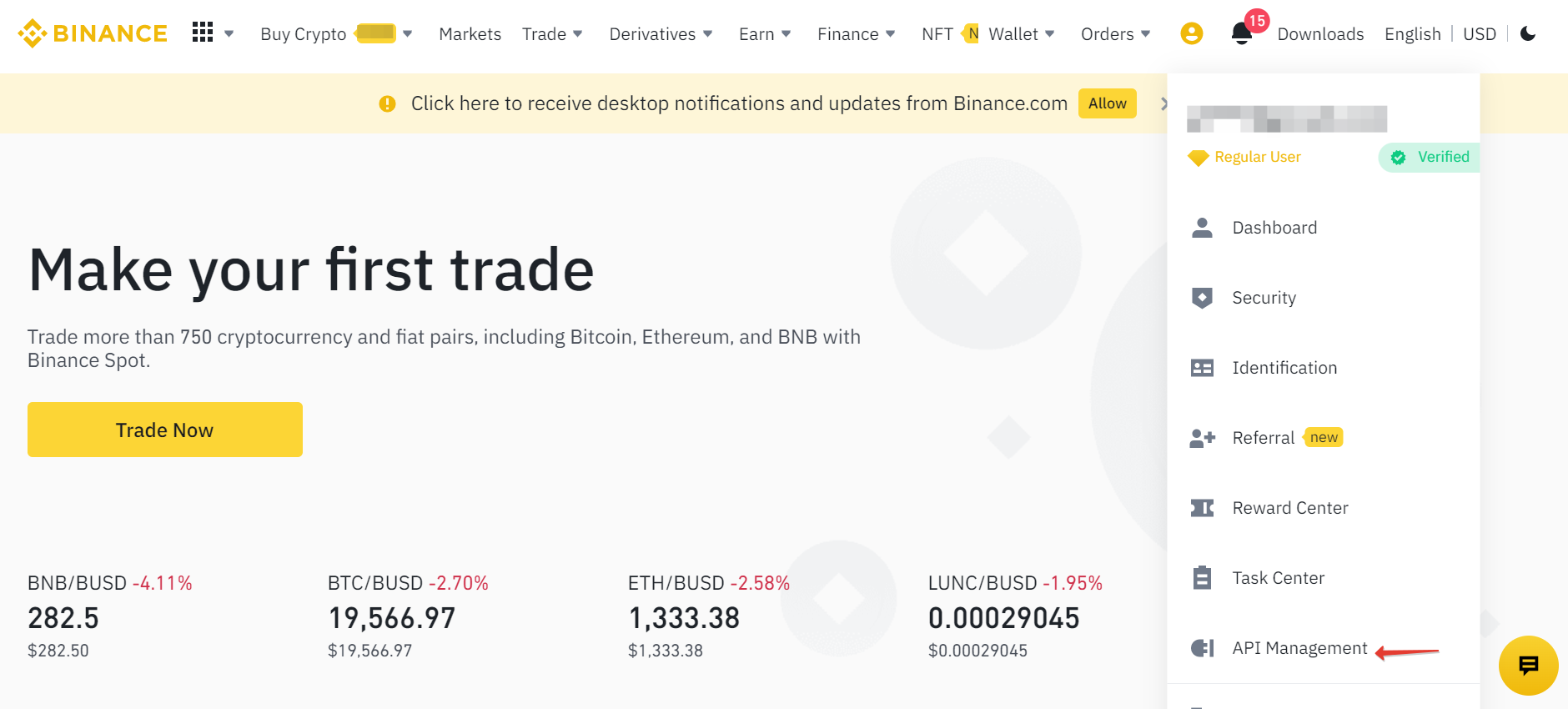
4. Go to the “API Management”
5. Name a new key and click on “Create API”
6. Confirm
7. Once API is created, click on Edit restrictions
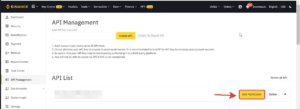
8. Check “Enable Spot & Margin Trading” and “Enable Margin Loan, Repay and Transfer“. Save settings
Please note that the isolated margin trading on a subaccount is only 10% of borrow limits indicated here https://www.binance.com/en/margin-fee (for Binance Regular Users subaccount borrow limits are 30 ETH and 0.9 BTC). If you want to trade with a higher balance it is advisable to use the isolated margin wallet on your Master account.
How to withdraw crypto from Binance Futures to Binance Fiat and Spot:
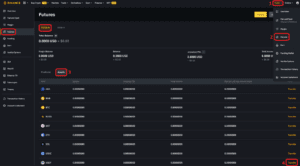
- Hover over the Wallet panel
- Select Futures in the list of wallets
- Open the Assets panel
- Opposite the USDT coin, click the Transfer button
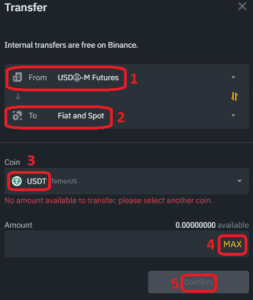
1. In the panel From select USD$-M Futures
2. In the panel To select Fiat and Spot
3. Select USDT coin
4. Click the MAX button
5. Click the Confirm button
How to convert USDT to BTC
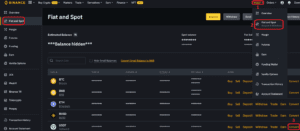
- Hover over the Wallet panel
- Select Fiat and Spot in the list of wallets
- Opposite the USDT coin, click the Convert button
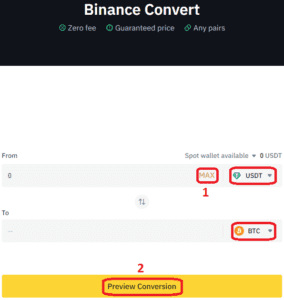
- Click the MAX button
- Click the Preview Conversion button
How to transfer coins from Binance Fiat and Spot wallet to Binance Margin:
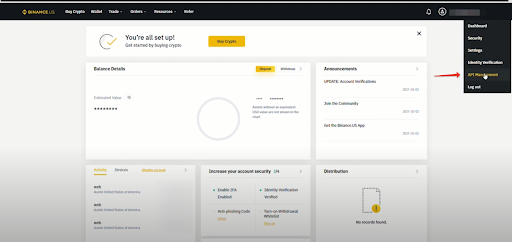
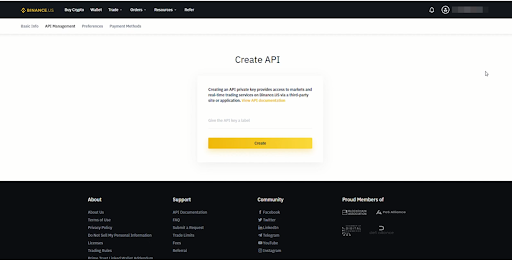
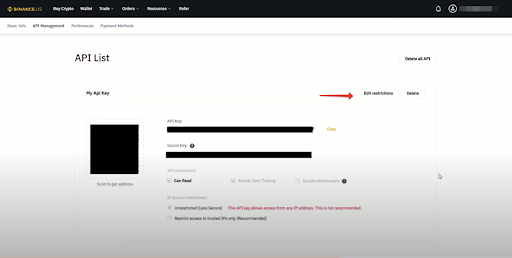
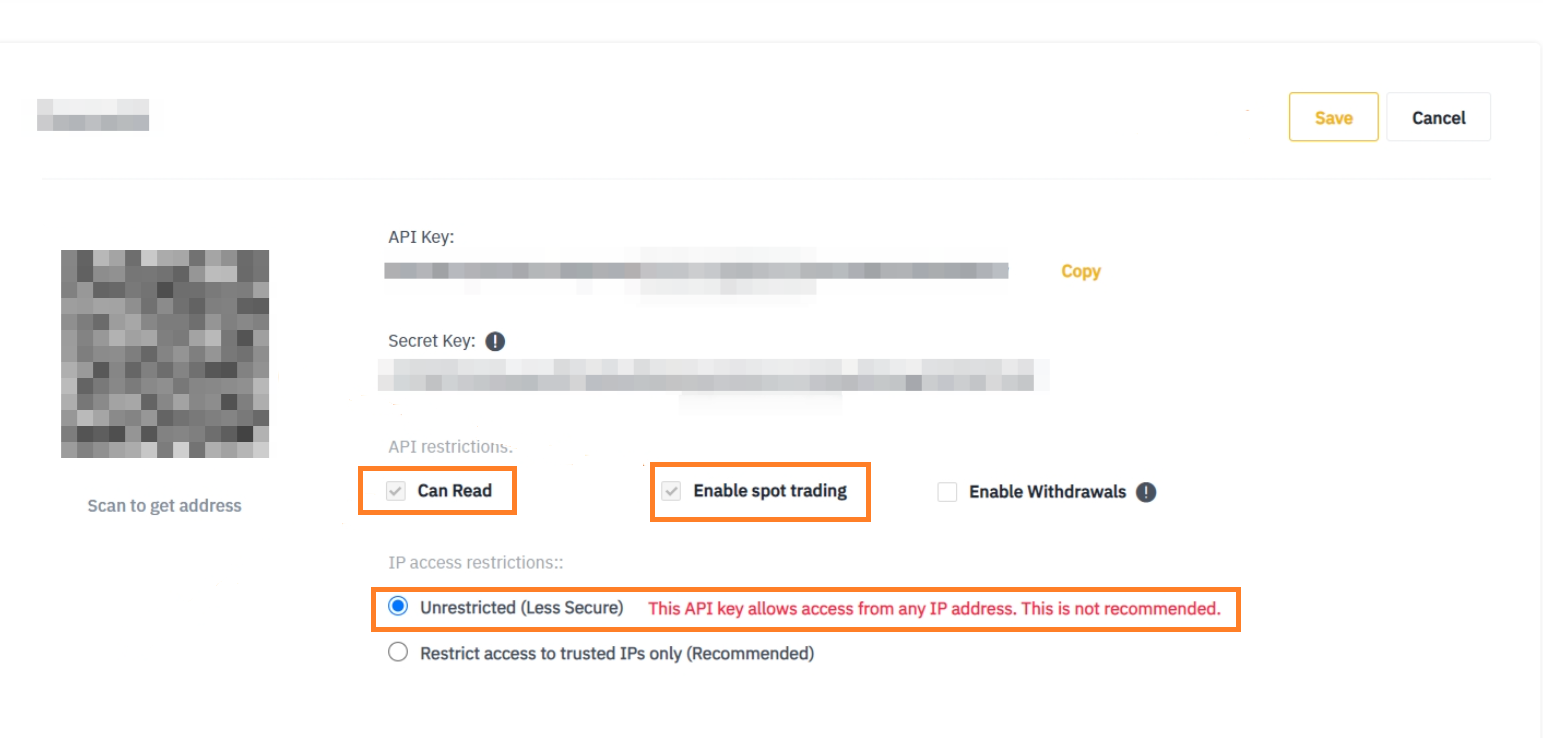
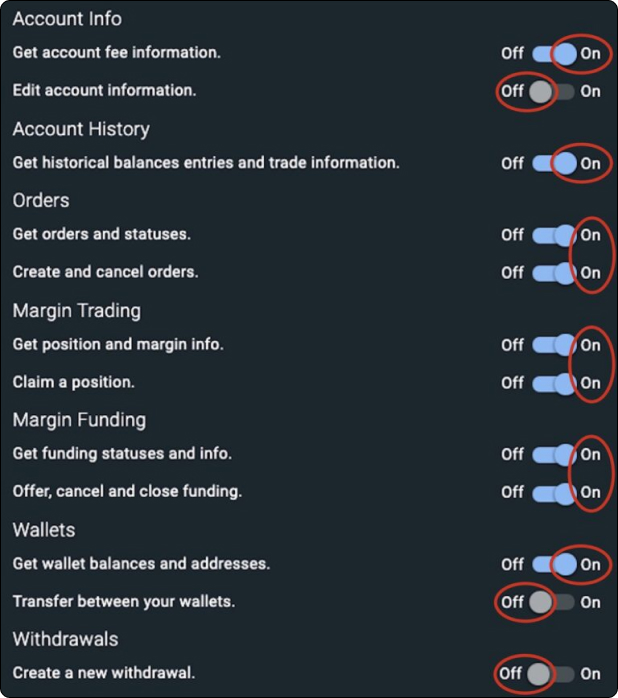
How to create a new pair of API keys on Binance.US
1
2
3
4
5
7
Save
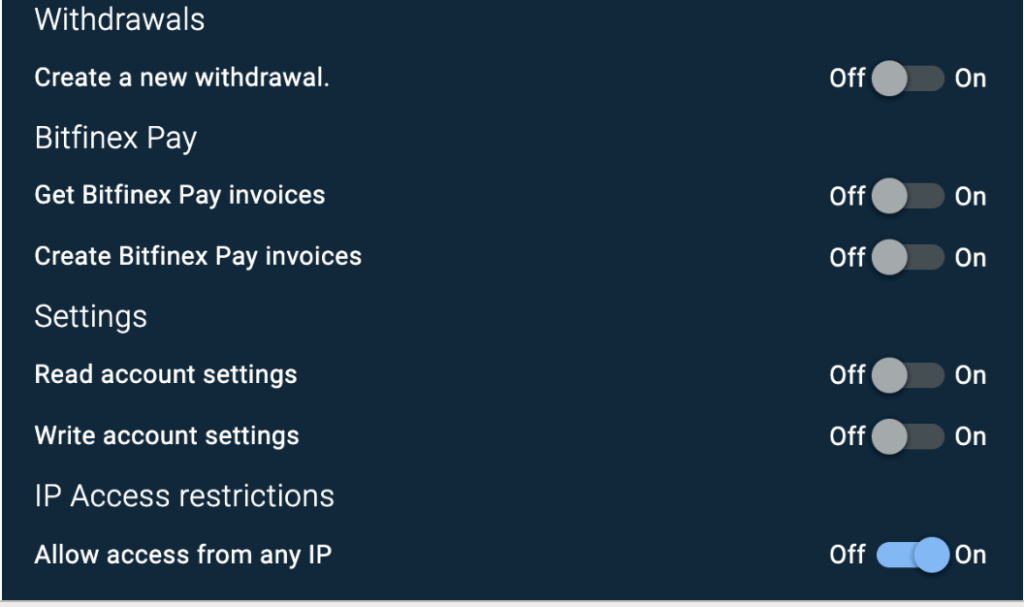
How to create a new pair of API keys on Bitfinex
1
Make sure that your Bitfinex account has at least Intermediate Verification Level. You can find more information on Bitfinex verification here
2
3
4
5
Video Tutorial “Creating API Keys for Bitfinex”
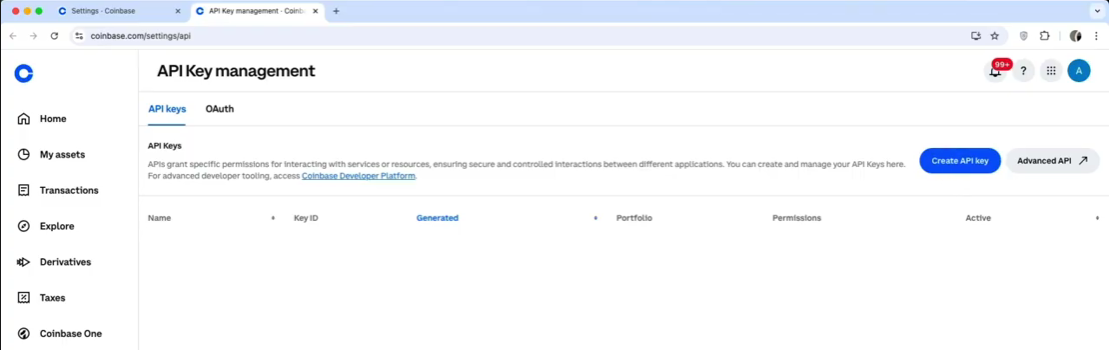
How to create a new pair of API keys on Coinbase
1
Log into Coinbase
.
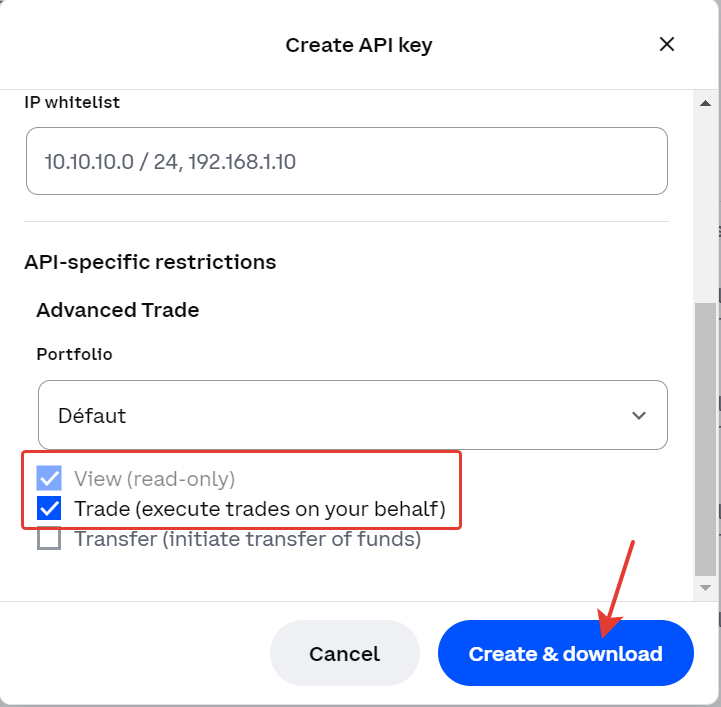
4
Click Create & Download
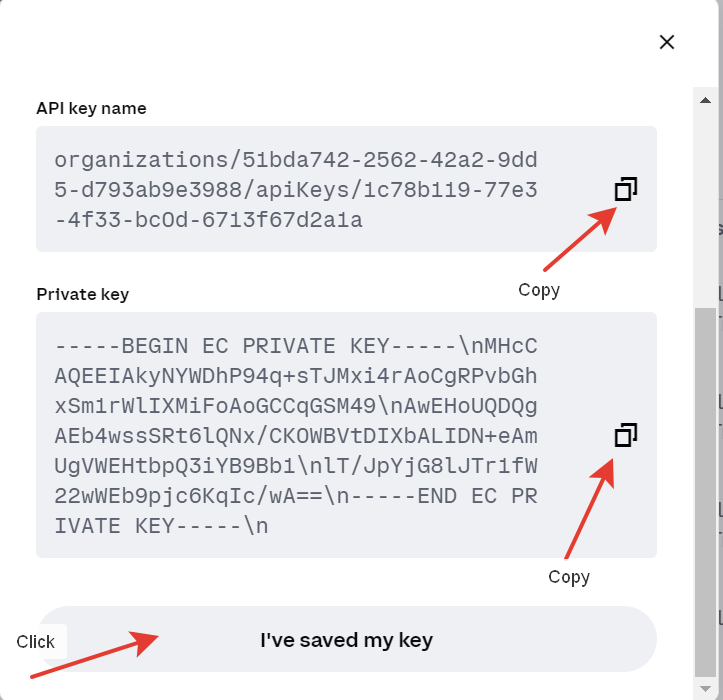
5
In the final popup, copy the API Key Name and Private Key (which will be downloaded as JSON file). Read the warning and click “I’ve saved my key” to finish.
6
Make sure that you have copied all symbols of the API keys.
Video Tutorial “How to connect strategy on Coinbase”
How to create a new pair of API keys on OKX
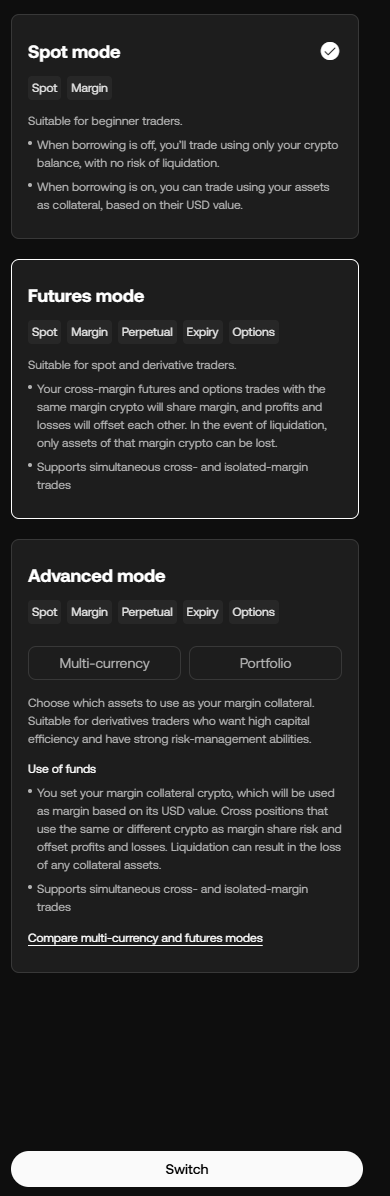
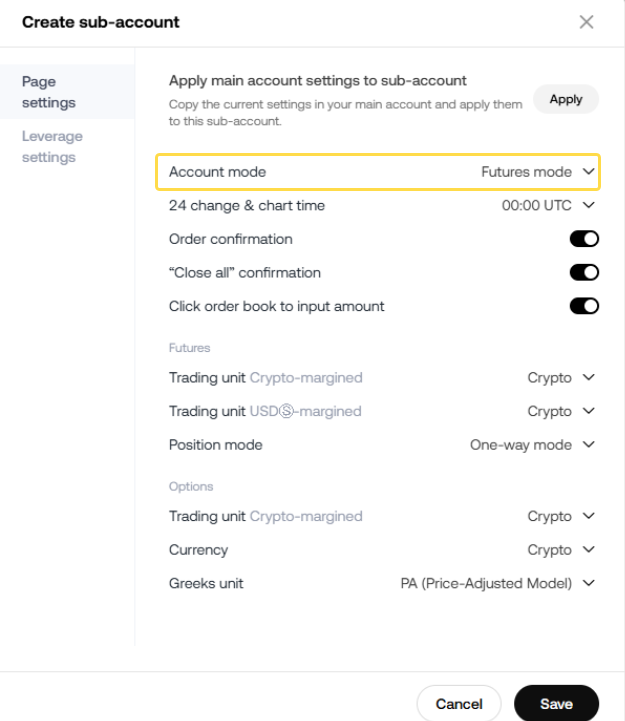
To connect Beta strategies, your account/sub-account can be in Spot Mode.
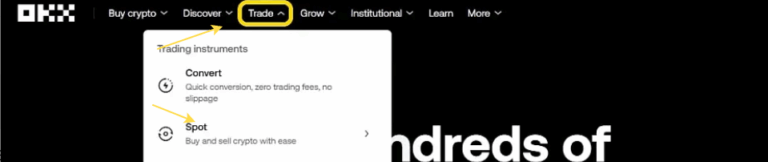
To connect Alpha strategies and Leverage strategies, you should change the mode of your account/sub-account to ‘Futures mode’ (Trade > Spot Trading > Settings > Account Mode).
How to switch your Account Mode to ‘Futures mode’
1
Log in to your OKX account or sub-account
2
Click ‘Trade’ > ‘Spot’
3
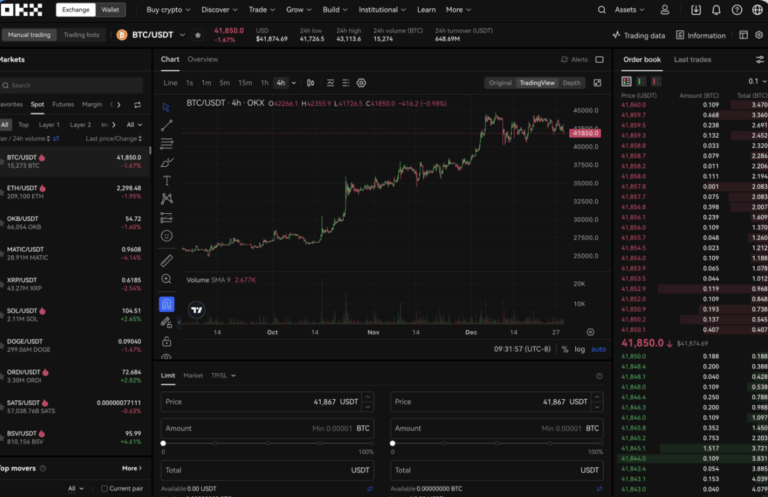
You will be redirected to the Trading page
4
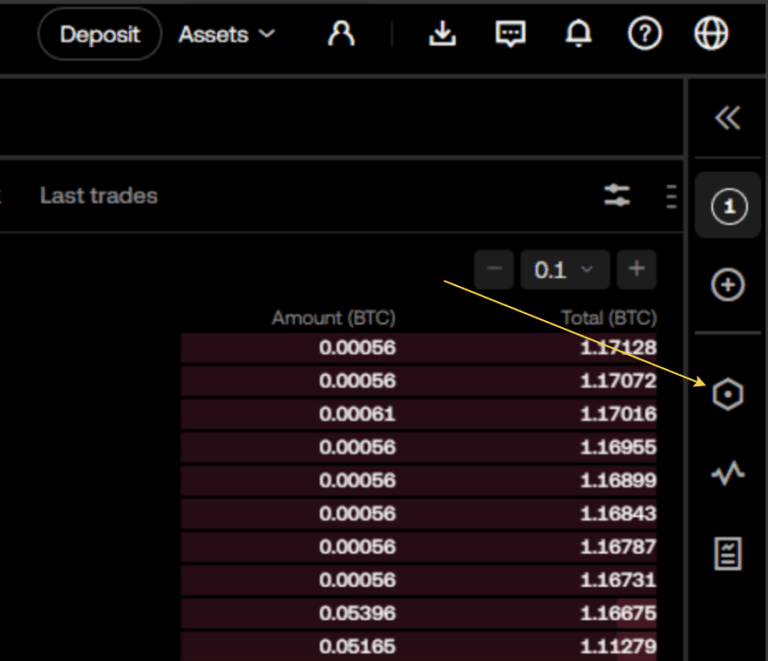
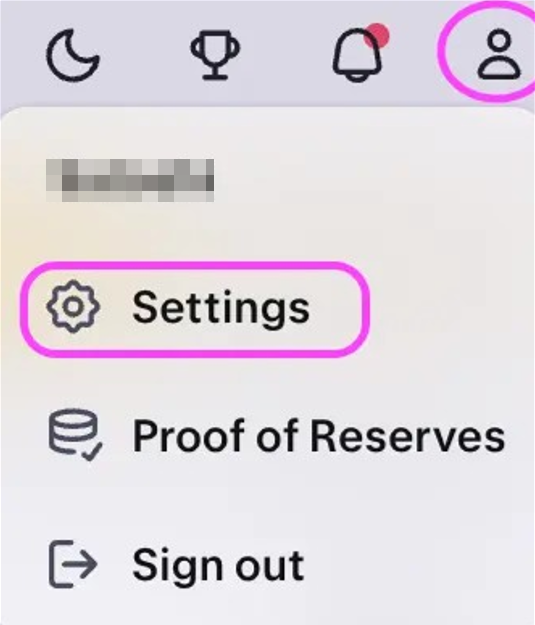
On the Trading page, click the ‘Gear’ icon to access ‘Settings’
5
Click the option ‘Account Mode’
6
Select ‘Futures Mode’ and ‘Switch’
Now you can connect Alpha and Leverage strategies to your account.
NOTE: If you connect Alpha or Leverage strategy to a sub-account, the Futures Mode should be activated for the sub-account
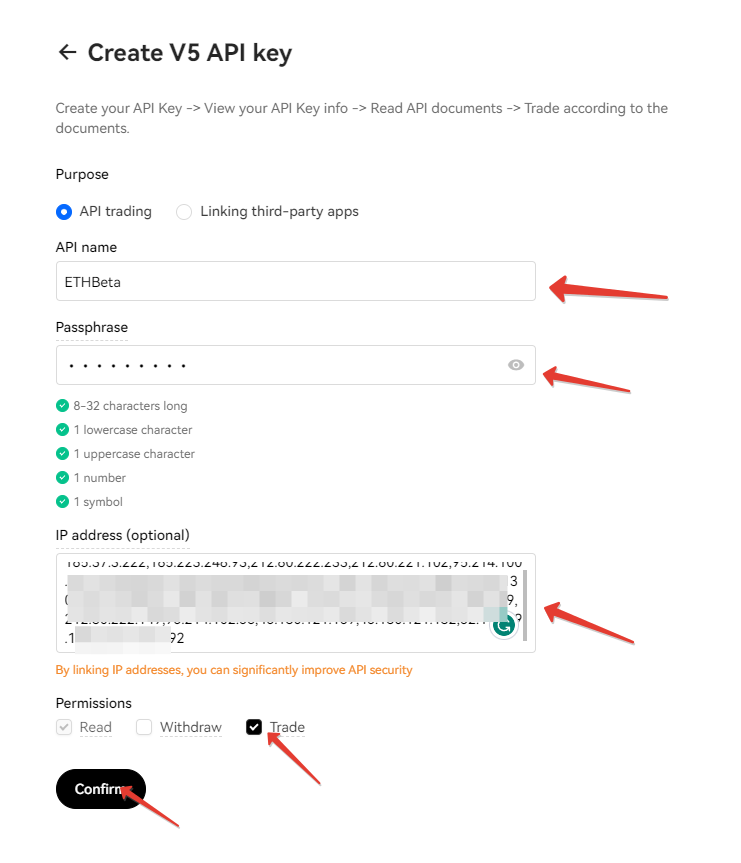
Next steps to create API keys:
4
Authenticate your action with SMS and click on the “Confirm” button
5
Save created API key and Secret key
Video Tutorial “How to connect a strategy to OKX”
1
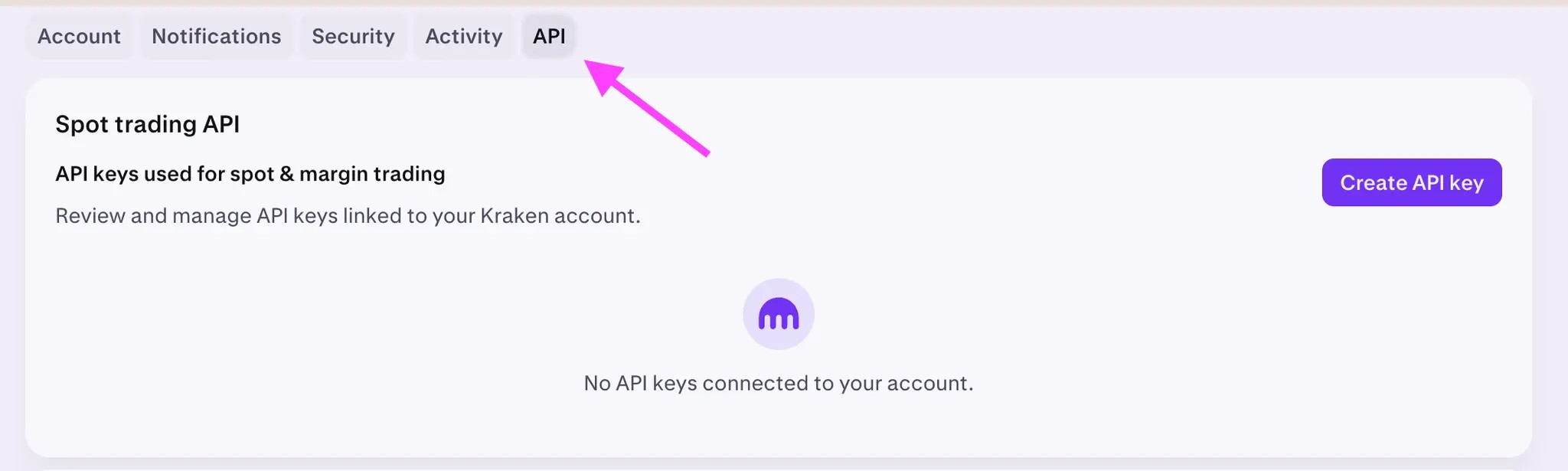
Log in to your Kraken account via Kraken Pro
4
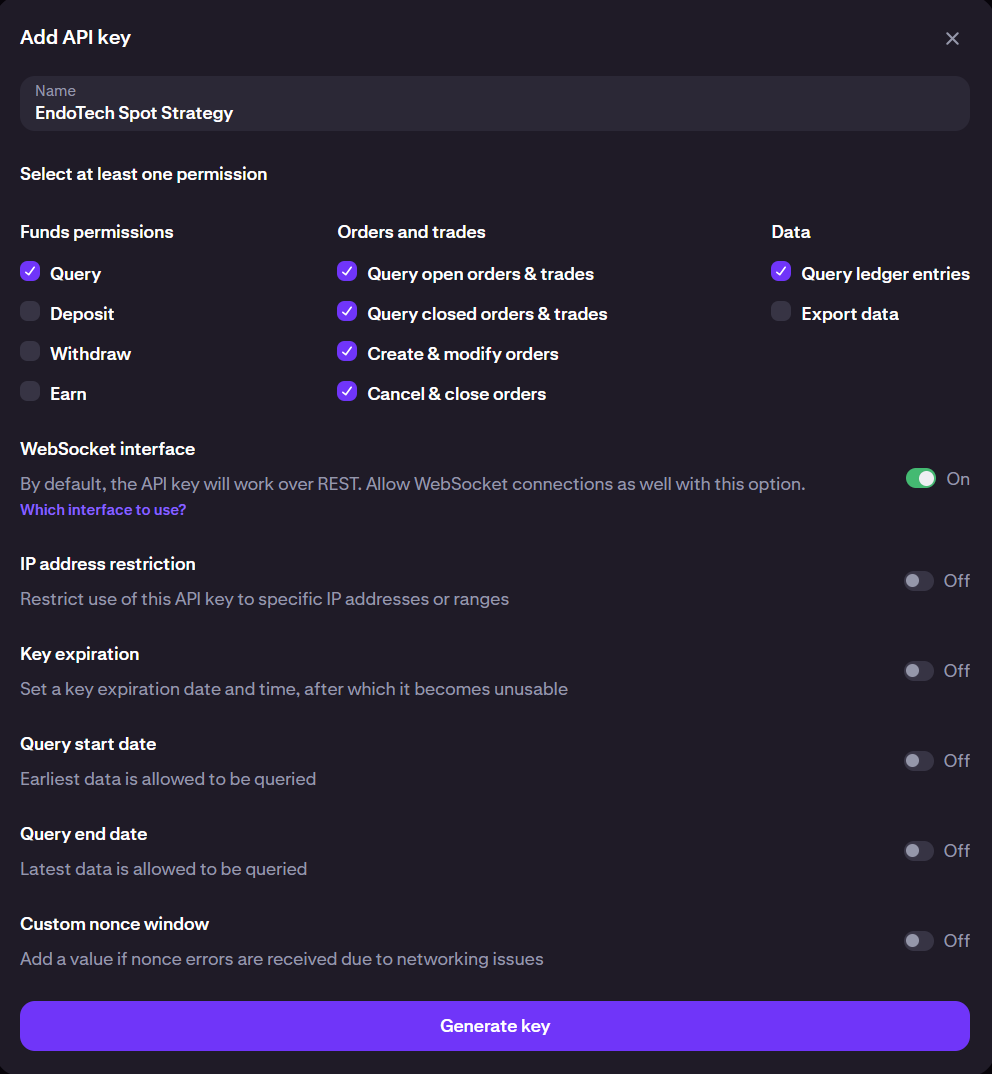
Enter the Key description (by default, it looks like “api-key-1605316109249”. We suggest you name API after your strategy, for instance, “ETH Alpha”) and select the following permissions:
Query Funds
Query Open Orders & Trades
Query Closed Orders & Trades
Query Ledger Entries
Create and Modify Orders
Cancel/Close Orders
Access WebSockets API
Do not select:
Export Data
Deposit Funds
Withdraw Funds
5
Click on “Generate key” at the bottom to create unique keys
6
Save created Public Key and Private Key
1
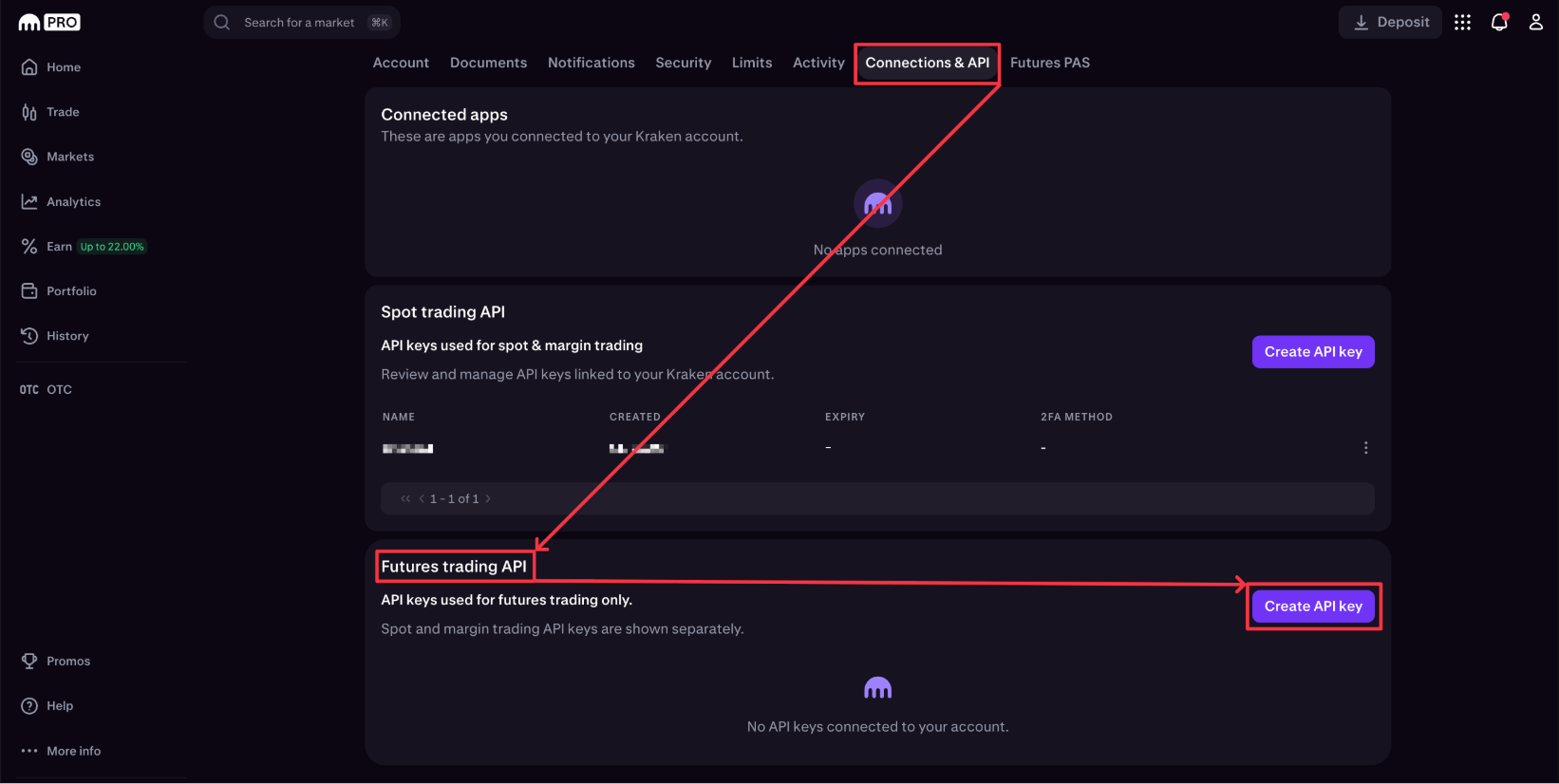
Log in to your Kraken Futures account
2
Open the Profile > Settings > API Keys page
3
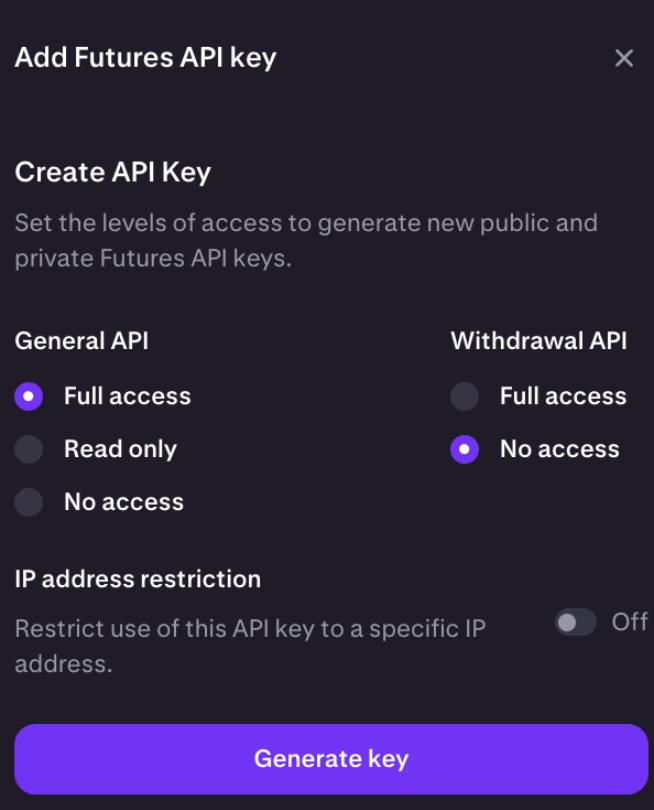
Select “Full Access” in General API section and “No Access” in Withdrawal API section. Click on “Create Key”
4
Save created Public Key and Private Key
Video Tutorial “How to create API keys on Kraken Futures”
Jump to:
- How to create a new pair of API keys on Binance
- How to create a new pair of API keys on Binance.US
- How to create a new pair of API keys on Bitfinex
- How to create a new pair of API keys on Coinbase
- How to create a new pair of API keys on OKX
- How to create a new pair of API keys on Kraken
- How to create a new pair of API keys on Kraken Futures